Category: Writing

  • Live Early! Nighthawks Box Set

    nighthawks box set

    The Nighthawks 3 Book Romance Series is LIVE early! Eeeep!!! If you love sweet and steamy sports romance with alpha banter, then you will definitely want to grab this box set now at new release pricing before it goes up to full price.

    Synopsis
    Three arrogant NFL players. The smart women they fall for. Get ready to watch the sparks fly!

    Binge read this three book collection of highly addictive billionaire ball players who play hard and love even harder! You will laugh. You will swoon. You will wish you had one of your very own to play with! 

    GUNSLINGER
    A hot, arrogant, NFL quarterback. A curvy, career driven, accountant. Can Saint and Sabrina put aside their differences and make this unique office romance work?

    WOLF
    A one-click, damn I read it one night, sexy boss romance and fated love story with the perfect alpha as*hole.

    DIESEL
    Two best friends. One fated romance. Diesel is the best friend & boy next door who got away.
  • Scrivener Tips: How To Label Your Scenes By Point Of View

    I write New Adult Contemporary Romance. In this genre, many authors like myself will write from a dual point of view. This can make things very tricky when you’re writing and editing a novel, as it was for me when I was first writing Cousins. I had no quick way of visually seeing what chapters were in what point of view in Word and even when I first started using Scrivener, I didn’t know what to do. But it’s super easy to label your scenes and chapters with a point of view in Scrivener. I’ll show you:

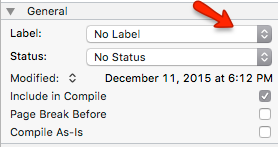
    In the right hand column of Scrivener, in the notes section, scroll down to the “General” section where you will see this image. You will be working with the Label drop down area. When you drop this down you will see default labels such as: notes, chapter, scene, etc. But the cool thing about Scrivener is that you can EDIT these labels.

    1. Click on the label drop down button and then click on EDIT.

    scrivener tip

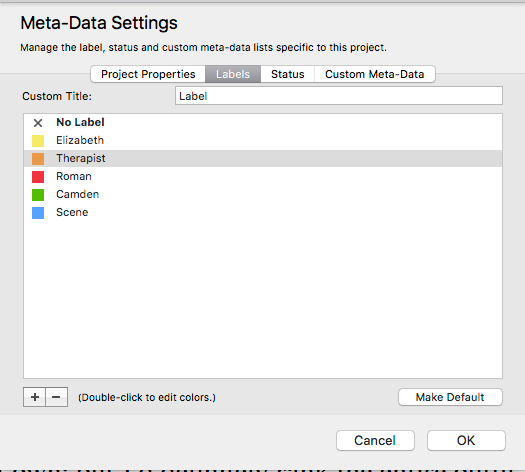
    2. When you click on EDIT, a Meta-Data box will open where you can start filling out your label information like this:

    scrivener tips

    3. Simply click on the color label you’d like and edit the NAME of that label. You can add or eliminate labels and play with the colors. Then click OK to save.

    4. Now that you’ve made your labels, you go back to the chapter or scene you were working in and select the label that is appropriate for that scene. For example, when I write scenes written in the point of view of my protagonist Elizabeth, I select the yellow Elizabeth label.

    scrivener tip

    5. If you view your entire manuscript in corkboard mode, you will see that all your cards have been color coded by their labels in the right hand corner. That means with a quick glance, you can see a synopsis of each of your scenes and whose point of view each are in!

  • Scrivener Tips: How To Save Your Compile Settings

    Attention, attention. I am NOT a Scrivener expert nor do I believe that any writer who actually is trying to make a living at his or her craft should spend hours watching tutorials or paying for Scrivener workshops. I don’t knock anyone’s hustle for providing Scrivener services, but I just don’t have the time. So…I’ve decided to publish (real world) Scrivener tips and hacks as I dig further into this amazing software and publish. So here’s my first tip…

    Saving Your Compile Settings In Scrivener

    Before I started writing fiction, I published several non-fiction books using Scrivener and every single time I went to compile the book for Amazon, Nook, iBooks or make a PDF; I had to fiddle around with those damn compile settings. It is a nightmare when you don’t know what you’re doing, and you want your manuscript to compile a particular way.

    So here’s what you do:

    1. Click on COMPILE as if you were about to compile your manuscript.

    2. Click on the Option Key on your keyboard and you will notice that the COMPILE button on your screen will now say SAVE.

    3. When you scroll over that SAVE button it will say “Save Without Compiling” and then you will click SAVE.

    Your COMPILE settings have now been saved without having to actually compile your document.  Now when you go to compile this document again or another manuscript you may have, Scrivener will already have these setting saved for you. No tweaking necessary unless you want to tweak:)

    Yippee!!!

    Note: I am using Scrivener on a Mac; but Windows users should click Save & Close when doing step #3.

  • What’s Going On With Shelfari?

    ShelfariAs an indie writer, I’m also looking for ways to increase visibility. Many of my favorite authors have an “enhanced” Amazon author page which features details of their books, books series, etc. and is pulling the information straight from Shelfari. It makes your author page look that more enticing. Of course today though, I just found this out (excerpt from Lisa Angelettie’s writing blog)…

     I just got off the phone with a very nice representative over at Amazon’s Author Central. I wanted some help incorporating Shelfari into my Author Central profile like I’ve seen on many author’s Amazon pages. I did a little Google research on how to do it but found that the instructions were outdated or just play wrong.

    When I called, even the associate wasn’t sure what happened to Shelfari. She had to run and check with someone else. Sure enough, Shelfari has been eliminated as an option for adding to your Amazon author page. When I asked if it was for a certain segment of books (ex. nonfiction vs. fiction), she said “No. All books.” Her words were she thinks that allowing the option “was more trouble than it was worth.”

    I’ve heard that some authors abused Shelfari. I’m not sure how. Probably only promoting their own books and not actually sharing and recommending books written by other authors. Which is really the point. Shelfari was suppose to be a book sharing and social site like Goodreads; but alas Goodreads does it so much better.

    So now that Amazon owns Goodreads, I wonder how they will incorporate it (or some of it’s features) into the Amazon book marketplace? It will be interesting to see how it unfolds and hopefully will be of some benefit to us indie authors.

    Oh well:) It was a good idea while it lasted.

  • Self Published Authors Earn More Than Big 5 Published Authors

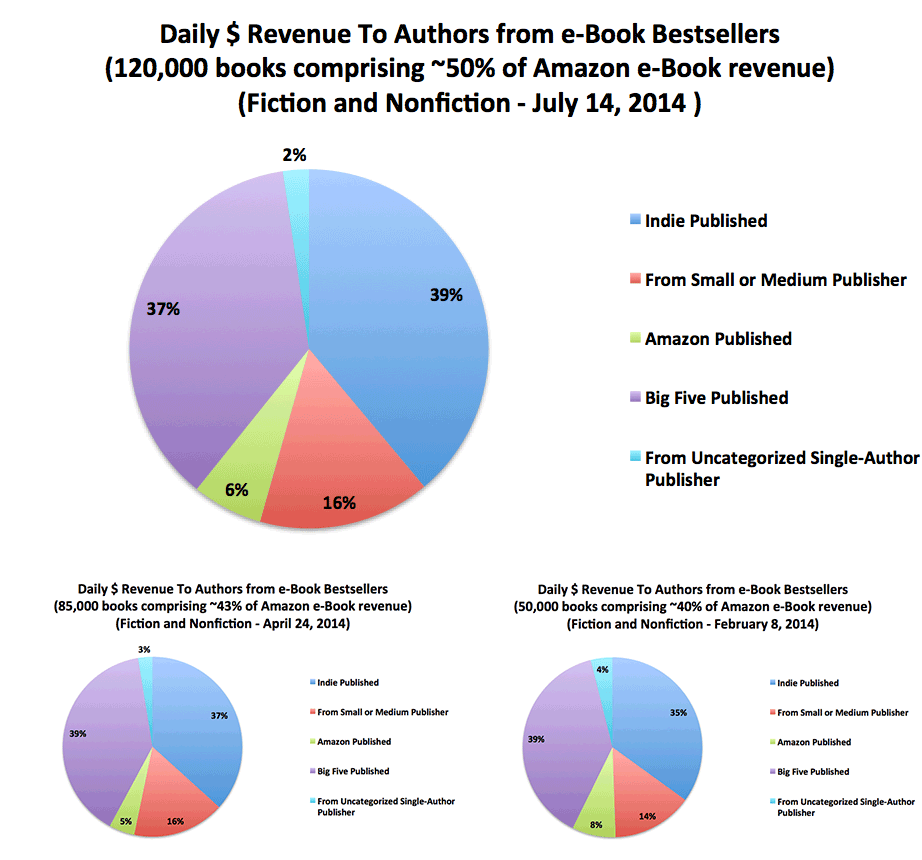
    I’m so excited to see all the statistics and graphs compiled by the people over at Author Earnings. In their latest earnings report, the data they’ve revealed shows that for the first time self published authors are earning more than authors who are published by the 5 major publishing houses.

    author earnings

    That’s BIG news for us.

    That means that being self published is no longer your “second choice” when a big 5 won’t accept your book. It’s what you can decide to do first. It makes the most fiscal sense in most genres.


  • Author E.L. James On Forbes Most Powerful Celebrity List

    E.L. James
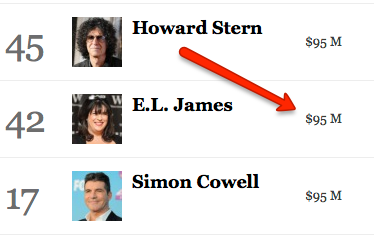
    Having sold over 70 million copies of her trilogy, Fifty Shades Of Grey, we’re not all going to be fan fiction phenoms like E.L. James, but it’s inspirational all the same to see an author holding her own on Forbes Most Powerful Celebrity List right under Howard Stern and above Simon Cowell! Cool right? And all from her very first published trilogy. Love it!!!